How to list the directory tree of a specified depth within a certain folder? It would be better if it can also display the folder size in MB.

China DOS Union
Union site: www.cn-dos.net Forum site: www.cn-dos.net/forum
DOS stands for freedom, openness and progress. Let us work hard, learn from the openness and GNU spirit of FreeDOS and Linux, and together build and grow a free GNU GPL world!
中国DOS联盟论坛 » DOS批处理 & 脚本技术(批处理室) » How to list the directory tree at a specified depth?
View 2,243 Replies 10
Original Poster
Posted 2008-10-13 17:36 · 中国 上海 联通
Floor 2
Posted 2008-10-13 19:31 · 中国 江西 赣州 电信
Floor 3
Posted 2008-10-13 19:41 · 中国 上海 浦东新区 电信
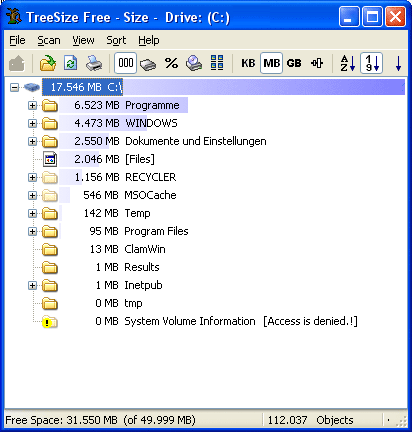
I also use this tool, but I can't export the results.
Floor 4
Posted 2008-10-14 01:20 · 中国 云南 昆明 电信
Floor 5
Posted 2008-10-14 21:56 · 中国 上海 浦东新区 电信
TREE can't specify the directory depth
Floor 6
Posted 2008-10-15 20:18 · 美国 惠普HP
Can I call TREE /A and then count how many "|" symbols there are? For example, there are 3 "|" symbols in the third level. Hope someone can give me some pointers.
+---Powerword 2007
| +---dicts
| +---flw
| +---Fonts
| +---Home
| +---images
| +---Infomation
| +---Language
| +---newword
| | +---Images
| | \---Themes
| | \---DefaultTheme
| +---plugin
| +---scrollword
| | +---Skins
| | | +---Blue
| | | +---Default
| | | +---Green
| | | +---LightBlue
| | | \---Silver
| | \---WordList
| +---Sentence
| +---style
| +---sunti
| +---themes
| | +---ClassicBlue
| | \---ElegantWhite
| \---TTS
+---Powerword 2007
| +---dicts
| +---flw
| +---Fonts
| +---Home
| +---images
| +---Infomation
| +---Language
| +---newword
| | +---Images
| | \---Themes
| | \---DefaultTheme
| +---plugin
| +---scrollword
| | +---Skins
| | | +---Blue
| | | +---Default
| | | +---Green
| | | +---LightBlue
| | | \---Silver
| | \---WordList
| +---Sentence
| +---style
| +---sunti
| +---themes
| | +---ClassicBlue
| | \---ElegantWhite
| \---TTS
Floor 7
Posted 2008-10-15 20:21 · 中国 陕西 西安 电信
S smile 微笑,L love 爱,O optimism 乐观,R relax 放松,E enthusiasm 热情...Slore
Floor 8
Posted 2008-10-18 11:24 · 中国 上海 浦东新区 电信
Can you give some specific code, thank you!
Floor 9
Posted 2008-10-18 14:26 · 中国 湖北 武汉 联通
版主
★★★★★

Credits 11,386
Posts 4,938
Joined 2006-07-23 17:10
20-year member
UID 59080
Posts 4,938
Joined 2006-07-23 17:10
20-year member
UID 59080
Status Offline
Just extract find.exe from the UnxUtils toolkit.
find -maxdepth 3 -name "*.exe"
Find all .exe files in the current directory and its subdirectories, with a maximum directory depth of no more than 3.
find -maxdepth 3 -name "*.exe"
Find all .exe files in the current directory and its subdirectories, with a maximum directory depth of no more than 3.
Recent Ratings for This Post
( 1 in total)
Click for details
| Rater | Score | Time |
|---|---|---|
| uiopuiop | +2 | 2008-10-18 23:05 |
Floor 10
Posted 2008-10-18 15:36 · 美国 惠普HP
find.exe
http://upload.cn-dos.net/img/772.zip
Related posts: http://www.cn-dos.net/forum/viewthread.php?tid=43057
[ Last edited by HAT on 2008-10-18 at 15:40 ]
http://upload.cn-dos.net/img/772.zip
Related posts: http://www.cn-dos.net/forum/viewthread.php?tid=43057
C:\Test>find --version
GNU find version 4.1
C:\Test>find --help
Usage: find
default path is the current directory; default expression is -print
expression may consist of:
operators (decreasing precedence; -and is implicit where no others are given):
( EXPR ) ! EXPR -not EXPR EXPR1 -a EXPR2 EXPR1 -and EXPR2
EXPR1 -o EXPR2 EXPR1 -or EXPR2 EXPR1 , EXPR2
options (always true): -daystart -depth -follow --help
-maxdepth LEVELS -mindepth LEVELS -mount -noleaf --version -xdev
tests (N can be +N or -N or N): -amin N -anewer FILE -atime N -cmin N
-cnewer FILE -ctime N -empty -false -fstype TYPE -gid N -group NAME
-ilname PATTERN -iname PATTERN -inum N -ipath PATTERN -iregex PATTERN
-links N -lname PATTERN -mmin N -mtime N -name PATTERN -newer FILE
-nouser -nogroup -path PATTERN -perm MODE -regex PATTERN
-size N -true -type -uid N -used N -user NAME
-xtype
actions: -exec COMMAND ; -fprint FILE -fprint0 FILE -fprintf FILE FORMAT
-ok COMMAND ; -print -print0 -printf FORMAT -prune -ls
Because find has powerful functions, so it also has many options, and most of these options are worth our time to understand. Even if the system contains a network file system (NFS), the find command is still effective in that file system, as long as you have the corresponding permissions.
When running a very resource-consuming find command, many people tend to run it in the background, because traversing a large file system may take a long time (here it refers to a file system of 30 GB or more).
The general form of the find command is:
find pathname -options
Let's take a look at the parameters of this command:
pathname: The directory path to be searched by the find command. For example, use. to represent the current directory and / to represent the system root directory.
-print: The find command outputs the matched file to standard output.
-exec: The find command executes the shell command given by this parameter on the matched file. The form of the corresponding command is ' command' {} \;
Note the space between {} and \;.
-ok: It has the same function as exec, but it executes the shell command given by this parameter in a more secure mode. Before executing each command, it will prompt you to determine whether to execute it.
First understand the parameters carried by find and what functions can be achieved
find command options
-name: Find files according to the file name.
-perm: Find files according to file permissions.
-prune: Using this option can make the find command not search in the current specified directory. If the -depth option is used at the same time, then -prune will be ignored by the find command.
-user: Find files according to the file owner.
-group: Find files according to the group to which the file belongs.
-mtime -n +n: Find files according to the change time of the file. -n means that the file change time is within n days from now, and +n means that the file change time is before n days from now. The find command also has -atime and -ctime options, but they are all related to the -mtime option.
-nogroup: Find files with no valid belonging group, that is, the group to which the file belongs does not exist in /etc/groups.
-nouser: Find files with no valid owner, that is, the owner of the file does not exist in /etc/passwd.
-newer file1 ! file2: Find files whose change time is newer than file1 but older than file2.
-type Find files of a certain type, such as:
b - block device file.
d - directory.
c - character device file.
p - pipe file.
l - symbolic link file.
f - ordinary file.
-size n: Find files with a length of n blocks. When c is carried, it means that the file length is counted in bytes.
-depth: When searching for files, first search for files in the current directory, and then search in its subdirectories.
-fstype: Find files located in a certain type of file system. These file system types can usually be found in the configuration file /etc/fstab, which contains information about file systems in this system.
-mount: Do not cross the file system mount point when searching for files.
-follow: If the find command encounters a symbolic link file, it will track to the file pointed to by the link.
-cpio: Use the cpio command for the matched file and back up these files to the tape device.
The following option I think is very useful, I didn't know it before, so I put it in the first explanation:
Use exec or ok to execute shell commands
When using find, as long as you write the desired operation in a file, you can use exec to cooperate with find to search, which is very convenient. (In some operating systems, only the -exec option is allowed to execute commands such as ls or ls -l). Most users use this option to find old files and delete them. It is recommended that before actually using the rm command to delete files, it is best to first use the ls command to see and confirm that they are the files to be deleted.
The exec option is followed by the command or script to be executed, then a pair of {}, a space and a \, and finally a semicolon.
To use the exec option, the print option must be used at the same time. If you verify the find command, you will find that the command only outputs the relative path and file name from the current path.
For example: To list the matched files with the ls -l command, you can put the ls -l command in the -exec option of the find command
# find . -type f -exec ls -l {} \;
-rw-r--r-- 1 root root 34928 2003-02-25 ./conf/httpd.conf
-rw-r--r-- 1 root root 12959 2003-02-25 ./conf/magic
-rw-r--r-- 1 root root 180 2003-02-25 ./conf.d/README
In the above example, the find command matches all ordinary files in the current directory and uses the ls -l command in the -exec option to list them.
Find files in the /logs directory that were changed more than 5 days ago and delete them:
$ find logs -type f -mtime +5 -exec rm {} \;
Remember, before deleting files in any way in the shell, you should first check the corresponding files and be careful! When using commands such as mv or rm, you can use the safe mode of the -exec option. It will prompt you before performing any operation on each matched file.
In the following example, the find command finds all files ending with.log in the current directory and whose change time is more than 5 days ago, and deletes them, but first gives a prompt before deleting.
$ find . -name "*.log" -mtime +5 -ok rm {} \;
< rm ... ./conf/httpd.conf > ? n
Press y to delete the file and n to not delete it.
Any form of command can be used in the -exec option.
In the following example, we use the grep command. The find command first matches all files named "passwd*", such as passwd, passwd.old, passwd.bak, and then executes the grep command to see if there is a sam user in these files.
# find /etc -name "passwd*" -exec grep "sam" {} \;
sam:x:501:501::/usr/sam:/bin/bash
Examples of the find command
To find all files in the current user's home directory, both of the following methods can be used:
$ find $HOME -print
$ find ~ -print
To find files in the current directory where the file owner has read and write permissions, and the users of the file's belonging group and other users have read permissions, you can use:
$ find . -type f -perm 644 -exec ls -l {} \;
To find all ordinary files in the system with a length of 0 and list their complete paths, you can use:
$ find / -type f -size 0 -exec ls -l {} \;
Find ordinary files in the /var/logs directory that were changed more than 7 days ago and ask for them before deleting:
$ find /var/logs -type f -mtime +7 -ok rm {} \;
To find all files belonging to the root group in the system, you can use:
$find . -group root -exec ls -l {} \;
-rw-r--r-- 1 root root 595 10月 31 01:09 ./fie1
The following find command will delete the admin.log files with numeric suffixes in the directory whose access time is within 7 days. This command only checks three-digit numbers, so the suffix of the corresponding file should not exceed 999.
First create a few admin.log* files before using this command
$ find . -name "admin.log" -atime -7 -ok rm {} \;
< rm ... ./admin.log001 > ? n
< rm ... ./admin.log002 > ? n
< rm ... ./admin.log042 > ? n
< rm ... ./admin.log942 > ? n
To find all directories in the current file system and sort them, you can use:
$ find . -type d | sort
To find all rmt tape devices in the system, you can use:
$ find /dev/rmt -print
The original book says:
To find all directories in the current file system and sort them, you can use:
$ find . -type d -loacl -mount |sort
It has been corrected to:
$ find . -type d |sort
xargs
When using the -exec option of the find command to process matched files, the find command passes all matched files to exec for execution at once. But some systems have a limit on the length of commands that can be passed to exec. After a few minutes of the find command running, an overflow error will occur. The error message is usually "Argument list too long" or "Argument list overflow". This is where the xargs command comes in, especially when used with the find command.
The find command passes the matched files to the xargs command, and the xargs command only gets a part of the files at a time instead of all, unlike the -exec option. In this way, it can process the first part of the files first, then the next batch, and so on.
In some systems, using the -exec option will start a corresponding process for each matched file to be processed, not all matched files as parameters to be executed at once; in this way, in some cases, there will be too many processes and the system performance will decrease. The problem is, so the efficiency is not high;
And using the xargs command has only one process. In addition, when using the xargs command, whether to get all parameters at once, or get parameters in batches, and the number of parameters obtained each time will be determined according to the options of this command and the corresponding adjustable parameters in the system kernel.
Let's see how the xargs command is used with the find command and give some examples.
The following example finds every ordinary file in the system, and then uses the xargs command to test which category each of them belongs to
#find . -type f -print | xargs file
./.kde/Autostart/Autorun.desktop: UTF-8 Unicode English text
./.kde/Autostart/.directory: ISO-8859 text\
......
Find memory information dump files (core dump) throughout the system, and then save the results to the /tmp/core.log file:
$ find / -name "core" -print | xargs echo "" >/tmp/core.log
This execution is too slow. I changed it to search in the current directory
#find . -name "file*" -print | xargs echo "" > /temp/core.log
# cat /temp/core.log
./file6
Find all files in the current directory where the user has read, write and execute permissions, and withdraw the corresponding write permissions:
# ls -l
drwxrwxrwx 2 sam adm 4096 10月 30 20:14 file6
-rwxrwxrwx 2 sam adm 0 10月 31 01:01 http3.conf
-rwxrwxrwx 2 sam adm 0 10月 31 01:01 httpd.conf
# find . -perm -7 -print | xargs chmod o-w
# ls -l
drwxrwxr-x 2 sam adm 4096 10月 30 20:14 file6
-rwxrwxr-x 2 sam adm 0 10月 31 01:01 http3.conf
-rwxrwxr-x 2 sam adm 0 10月 31 01:01 httpd.conf
Use the grep command to search for the word hostname in all ordinary files:
# find . -type f -print | xargs grep "hostname"
./httpd1.conf:# different IP addresses or hostnames and have them handled by the
./httpd1.conf:# VirtualHost: If you want to maintain multiple domains/hostnames on your
Use the grep command to search for the word hostnames in all ordinary files in the current directory:
# find . -name \* -type f -print | xargs grep "hostnames"
./httpd1.conf:# different IP addresses or hostnames and have them handled by the
./httpd1.conf:# VirtualHost: If you want to maintain multiple domains/hostnames on your
Note that in the above example, \ is used to cancel the special meaning of * in the shell in the find command.
The find command can use exec and xargs to allow users to execute almost all commands on the matched files.
The following are examples of some commonly used parameters of find. You can check them when you need them. For example, in the previous few posts, some of these parameters are used, and you can also use man or check other posts in the forum for the command manual of find
1. Use the name option
The filename option is the most commonly used option of the find command, either used alone or in combination with other options.
You can use a certain filename pattern to match files, remember to enclose the filename pattern in double quotes.
No matter what the current path is, if you want to find files with the *.txt filename in your home directory $HOME, use ~ as the pathname parameter, and the tilde ~ represents your $HOME directory.
To find all '*.txt' files in the current directory and its subdirectories, you can use:
$ find . -name "*.txt" -print
To find files in the current directory and its subdirectories that start with an uppercase letter, you can use:
$ find . -name "*" -print
To find files starting with host in the /etc directory, you can use:
$ find /etc -name "host*" -print
To find files in the $HOME directory, you can use:
$ find ~ -name "*" -print or find . -print
To make the system run at high load, start searching for all files from the root directory.
$ find / -name "*" -print
If you want to find files in the current directory that start with two lowercase letters, followed by two numbers, and end with *.txt, the following command will return the file named ax37.txt:
$find . -name ".txt" -print
2. Use the perm option
Use the -perm option according to the file permission mode. When looking for files according to the file permission mode, it is best to use the octal permission notation.
For example, to find files with file permission bits 755 in the current directory, that is, files that the file owner can read, write, and execute, and other users can read and execute, you can use:
$ find . -perm 755 -print
There is another expression method: add a horizontal bar - in front of the octal number to indicate that all match, such as -007 is equivalent to 777, -006 is equivalent to 666
# ls -l
-rwxrwxr-x 2 sam adm 0 10月 31 01:01 http3.conf
-rw-rw-rw- 1 sam adm 34890 10月 31 00:57 httpd1.conf
-rwxrwxr-x 2 sam adm 0 10月 31 01:01 httpd.conf
drw-rw-rw- 2 gem group 4096 10月 26 19:48 sam
-rw-rw-rw- 1 root root 2792 10月 31 20:19 temp
# find . -perm 006
# find . -perm -006
./sam
./httpd1.conf
./temp
3. Ignore a certain directory
If you want to ignore a certain directory when searching for files because you know there are no files you are looking for in that directory, you can use the -prune option to indicate the directory to be ignored. Be careful when using the -prune option, because if you use the -depth option at the same time, the -prune option will be ignored by the find command.
If you want to search for files under the /apps directory but do not want to search under the /apps/bin directory, you can use:
$ find /apps -path "/apps/bin" -prune -o -print
find The expression after the path list is
-path "/usr/sam" -prune -o -print is a short form of -path "/usr/sam" -a -prune -o -print. The expression is evaluated in order. -a and -o are both short-circuit evaluations, similar to && and || in shell. If -path "/usr/sam" is true, then evaluate -prune, -prune returns true, and the logical expression is true; otherwise, do not evaluate -prune, and the logical expression is false. If -path "/usr/sam" -a -prune is false, then evaluate -print, -print returns true, and the logical expression is true; otherwise, do not evaluate -print, and the logical expression is true.
This special combination of expressions can be written in pseudocode as
if -path "/usr/sam" then
-prune
else
Avoid multiple folders
find /usr/sam \( -path /usr/sam/dir1 -o -path /usr/sam/file1 \) -prune -o -print
Parentheses represent the combination of expressions.
\ means reference, that is, instruct the shell not to make special explanations for the following characters, but leave it to the find command to interpret its meaning.
Find a certain determined file, and the -name and other options are added after -o
#find /usr/sam \(-path /usr/sam/dir1 -o -path /usr/sam/file1 \) -prune -o -name "temp" -print
4. Use the user and nouser options
Find files according to the file owner. For example, to find files with the owner sam in the $HOME directory, you can use:
$ find ~ -user sam -print
To find files with the owner uucp under the /etc directory:
$ find /etc -user uucp -print
To find files whose owner account has been deleted, you can use the -nouser option. In this way, you can find those files whose owner does not have a valid account in the /etc/passwd file. When using the -nouser option, you don't need to give the user name, and the find command can do the corresponding work for you.
For example, if you want to find all such files under the /home directory, you can use:
$ find /home -nouser -print
5. Use the group and nogroup options
Just like the user and nouser options, the find command has the same options for the user group to which the file belongs. To find files belonging to the gem user group under the /apps directory, you can use:
$ find /apps -group gem -print
To find all files that do not have a valid belonging user group, you can use the nogroup option. The following find command finds such files from the root directory of the file system
$ find / -nogroup -print
6. Find files according to change time or access time, etc.
If you want to find files according to the change time, you can use the mtime, atime or ctime options. If the system suddenly has no available space, it is very likely that the length of a certain file has increased rapidly during this period. At this time, you can use the mtime option to find such files.
Use the minus sign - to limit files whose change time is within n days from now, and use the plus sign + to limit files whose change time is before n days from now.
To find files in the system root directory whose change time is within 5 days, you can use:
$ find / -mtime -5 -print
To find files in the /var/adm directory whose change time is more than 3 days ago, you can use:
$ find /var/adm -mtime +3 -print
7. Find files newer or older than a certain file
If you want to find all files whose change time is newer than a certain file but older than another file, you can use the -newer option. Its general form is:
newest_file_name ! oldest_file_name
Among them,! is the logical NOT symbol.
Find files whose change time is newer than the file sam but older than the file temp:
Example: There are two files
-rw-r--r-- 1 sam adm 0 10月 31 01:07 fiel
-rw-rw-rw- 1 sam adm 34890 10月 31 00:57 httpd1.conf
-rwxrwxr-x 2 sam adm 0 10月 31 01:01 httpd.conf
drw-rw-rw- 2 gem group 4096 10月 26 19:48 sam
-rw-rw-rw- 1 root root 2792 10月 31 20:19 temp
# find -newer httpd1.conf ! -newer temp -ls
1077669 0 -rwxrwxr-x 2 sam adm 0 10月 31 01:01 ./httpd.conf
1077671 4 -rw-rw-rw- 1 root root 2792 10月 31 20:19 ./temp
1077673 0 -rw-r--r-- 1 sam adm 0 10月 31 01:07 ./fiel
Find files whose change time is newer than the temp file:
$ find . -newer temp -print
8. Use the type option
To find all directories under the /etc directory, you can use:
$ find /etc -type d -print
To find all types of files except directories in the current directory, you can use:
$ find . ! -type d -print
To find all symbolic link files under the /etc directory, you can use:
$ find /etc -type l -print
9. Use the size option
You can find files according to the file length. The file length referred to here can be measured in blocks or in bytes. The expression form of measuring the file length in bytes is Nc; only the number is used to measure the file length in blocks.
When finding files according to the file length, generally use this file length expressed in bytes, because when viewing the size of the file system, it is easier to convert by using blocks.
To find files in the current directory whose length is greater than 1M bytes:
$ find . -size +1000000c -print
To find files in the /home/apache directory whose length is exactly 100 bytes:
$ find /home/apache -size 100c -print
To find files in the current directory that are more than 10 blocks long (one block is 512 bytes):
$ find . -size +10 -print
10. Use the depth option
When using the find command, you may want to match all files first and then search in the subdirectories. Using the depth option can make the find command do this. One reason for doing this is that when using the find command to back up the file system to a tape, you want to back up all files first and then back up the files in the subdirectories.
In the following example, the find command starts from the root directory of the file system and finds a file named CON.FILE.
It will first match all files and then search in the subdirectories.
$ find / -name "CON.FILE" -depth -print
11. Use the mount option
To find files in the current file system (not entering other file systems), you can use the mount option of the find command.
Find files ending with XC in the current directory and whose file name is located in this file system:
$ find . -name "*.XC" -mount -print
12. Use the cpio option
The cpio command can be used to back up files to a tape device or restore files from it. You can use the find command to find files in the entire file system (more often in part of the file system), and then use the cpio command to back up them to the tape.
If you want to use the cpio command to back up the files in the /etc, /home and /apps directories, you can use the following command, but remember that you are under the root directory of the file system:
#cd /
#find etc home apps -depth -print | cpio -ivcdC65535 -o
In the above example, you should notice that there is no / in the path. This is called a relative path. The reason for using a relative path is that when restoring these files from the tape, you can choose the path to restore the files. For example, you can restore the files to another directory first, perform some operations on them, and then restore them to the original directory. If an absolute path is used during backup, such as /etc, then during restoration, it can only be restored to the /etc directory, and there is no other choice. In the above example, I told the find command to first enter the /etc directory, then the /home and /apps directories, match the files under these directories first, and then match the files in their subdirectories. All these results will be passed through the pipeline to the cpio command for backup.
By the way, in the above example, the cpio command uses the C65535 option. The B option could have been used, but then the size of each block is only 512 bytes, and after using the C65535 option, the size of the block becomes 64K bytes (65535/1024).
[ Last edited by HAT on 2008-10-18 at 15:40 ]

Floor 11
Posted 2008-10-18 16:35 · 中国 广东 广州 珠江宽频
Good post
Forum Jump: