DigestI
 StickyI
Novice DOS Software Localization Ultimate Tutorial (with Examples, Ensure You Learn!)
Novice work, old birds don't need to read it, so as not to say I'm wasting your time.
All operations are completed in Windows, tested in VPC virtual computer, ensure you learn, no nonsense, directly cut to the core!
1. Tools Needed (Are You Ready?)
(1). Download Li Guoyin's English software prompt information permanent localization tool ercwin5.zip version.
Download page: http://www.esnips.com/web/erctool
(2). Prepare UltraEdit, no need to say more, I believe everyone knows it.
Download page: http://www.orsoon.com/Soft/4925.html
(3). One VPC virtual computer software (mine is VPC 5.2).
Download page: http://www.orsoon.com/Soft/2392.html
(4). One CUP386 unpacker (the most powerful decryption and unpacking software).
Download page: ftp://ftp.sac.sk/pub/sac/pack/ucfcup34.zip
(5). One UPX packer (most foreign software is packed with it oh).
Download page: http://www.orsoon.com/Soft/4190.html
(6). One WinImage floppy disk image making tool.
Download page: http://www.orsoon.com/Soft/1815.html
Select the menu "Options-Settings", then click "Genenal", and select "Simplified Chinese" in "Language", which is WinImage with Simplified Chinese interface.
Registration name: winimage
Registration code: 13D505DF
(7). Okay, almost, plus Windows notepad, a standard boot disk.IMG image (available CN-DOS standard boot disk), prepare a Chinese character system (tw, CCDOS as you like) and put it in.IMG, first test in the virtual machine to see if it can boot or load the Chinese character system.
2. Preparation Work
(1). Install Li Guoyin's English software prompt information permanent localization tool Windows version, this is very simple,
But when a dialog box "Register file C:\windows\system32\expsrv.dll" error occurs,
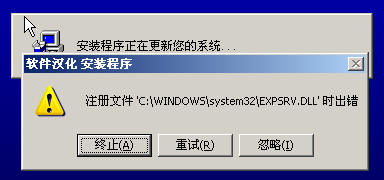
Click the "Ignore (I)" button, after installation is complete, replace the expsrv.dll in "Software Localization.CAB" in the original compressed package with the same name file in C:\windows\system32\expsrv.dll, and the installation is successful here!
(2). Extract CUP386.com and so on to c:\do directory, write a simple batch do.bat
@echo off
set str=program name.extension
cup386 /1 %str% c%str%
After unpacking is completed, the unpacked program name is prefixed with a c character to distinguish.
3. Start Localization
Take an example, such as localizing RAR2.50 registered version, let's try.
The original English registered version of the attachment is: http://upload.cn-dos.net/img/878.rar
(1) Step 1: Unpack and decrypt
Open rar.exe with notepad and take a preliminary look, find that it's all garbled, not a few English strings, estimated to be packed (also called encrypted). Small tip: Like MS-DOS 7.10's IO.SYS, COMMAND.COM, etc., their English prompt characters are in plain text inside, so it's simpler to localize them, at least no need for the unpacking and decrypting step. Because most foreign programs are encrypted with UPX, so for novices, the simplest method is to first try unpacking with Upxshell, and the result is found:
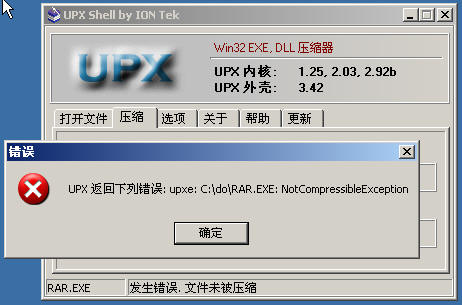
This indicates that RAR.EXE is not encrypted with UPX. Small tip: If you take a preliminary look with notepad and find characters like UP..X and so on, most are UPX shells added, then use cup386 to unpack.
Jump to c:\do directory, and put the rar.exe to be unpacked in the same directory as CUP386 in C:\do.
Properly change set str=program name.extension in do.bat to set str=rar.exe as shown in the figure:
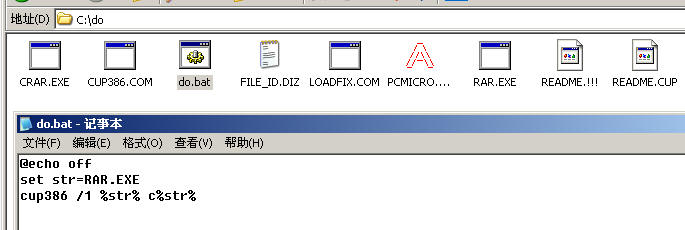
Then double-click do.bat to perform unpacking (because it needs to scan the entry point, it may take some time, please wait...). After a while, the unpacking is successful, and a crar.exe is generated, copy it to other non-C: disk directories and rename it to rar.exe. I put it in D:\ here, note: must not put it in C: disk.
(2) Step 2: Software Localization
Open Li Guoyin's English software prompt information permanent localization tool, and click the "Extract Prompt Information" button, select the unpacked rar.exe, here is D:\rar.exe, there are three radio "Function Options":
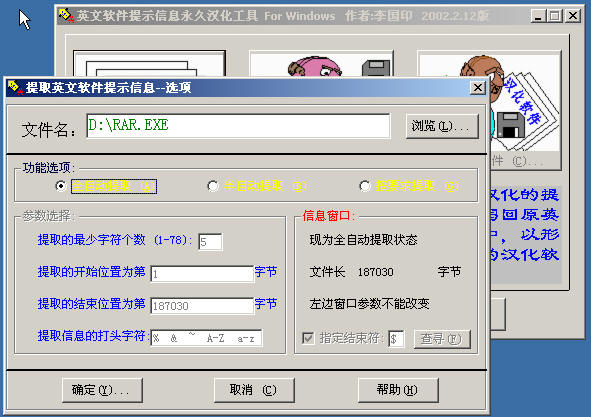
For novices, in order to make localization as successful as possible, it's best to follow the following recommended principles!
i) First use automatic extraction, when this step of localization is completed and debugging is okay, then
ii) Use semi-automatic extraction to localize some remaining unextracted English strings
iii) After the above two steps are completed, use UltraEdit to do the final work, that is, manually replace some remaining English strings to make localization thorough.
Let's tell them one by one:
Step 1: First select "Automatic Extraction" then confirm, after automatic extraction is completed, click "No (N)" in the "Software Localization" dialog box, then click the "Localize Prompt Information" button, start translating strings line by line, you can also click the "Translate" button to use the machine-translated information for reference and modification, if you find translation difficult, turn on Kingsoft Iceberg Dictionary too, as shown in the figure:
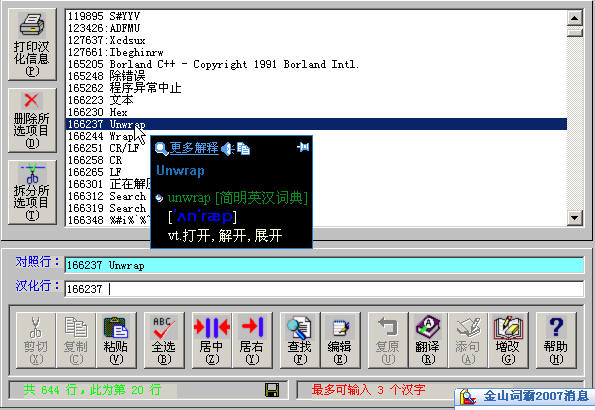
Next, tell the precautions during localization:
★. Never remove or translate %c %d %s %ud %uld %d.0%d and so on, because they will be used as replaceable parameters of the program.
★. The $, $$ and other characters in the localized line should be aligned with the corresponding lines above and below, because $ they may be the memory addresses accessed by the program through pointers, if the position changes, the program will crash or have CPU errors.
★. An experience common sense, the length of the localized line string must not exceed the length of the corresponding line, especially when you use the "Edit" button to open the word processor for batch translation, you need to pay attention.
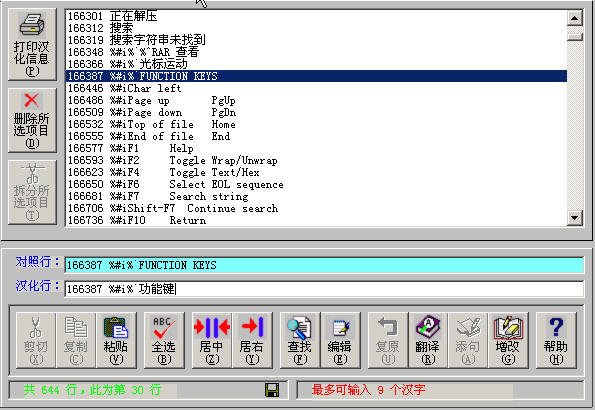
Let's continue translating, you may need to test in the virtual computer every time you localize for a while, so as to find errors early and correct them... After saving, click the "Build Localized Software" button, click "No (N)" in the following dialog box to avoid errors
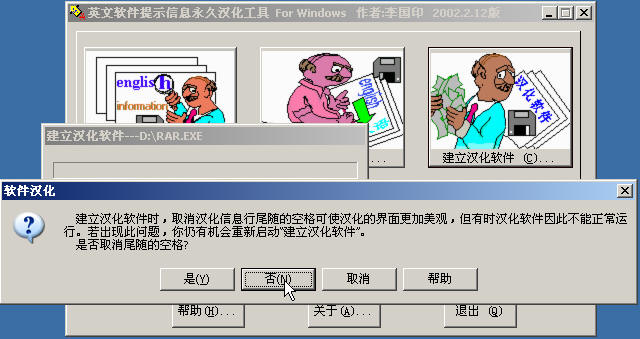
Finally click "Yes (Y)" to replace the original English software.
Use WinImage to drag part of the localized rar.exe and the registration file rar.cfg into an. img image with Chinese character system together to test...
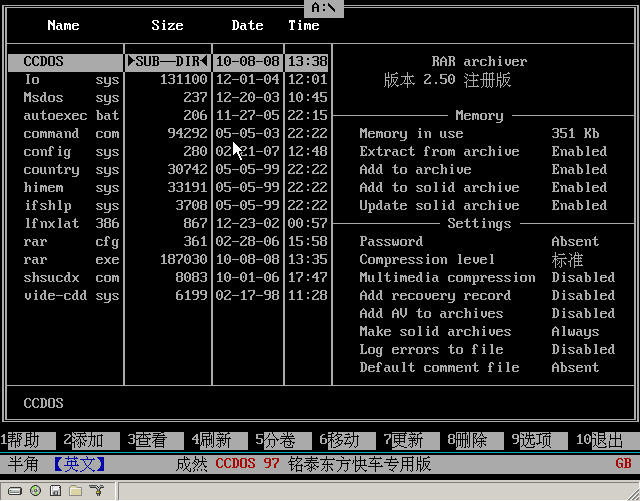
Not bad, continue localizing, return and click "Localize Prompt Information" to modify and localize the remaining lines. Repeat the above operations continuously until the first step of localizing rar.exe is completed, we find that after the first step, most of the English has been localized, but there are still a few remaining unlocalized.
If you have any questions, send a text document at this time for comparison:
Download link: http://upload.cn-dos.net/img/895.rar
Step 2: Re-extract the English strings of rar.exe that has been localized in most parts, at this time select "Semi-automatic Extraction" in the "Function Options" to manually screen English strings. It's better to back up this semi-localized rar.exe first, small tip: Before performing this operation, first automatically extract a small-volume DOS software, then semi-automatically extract rar.exe to prevent that the content retained when you semi-automatically extract is still the content of the previous automatic extraction.
In this, it seems that there are not too many English strings, translate the words like Line up, Line down, Char right, Memory, and Settings and other words, then save and replace to carry out the third step of final work.
Step 3: Use Ultra Edit to manually replace the remaining English strings to make localization thorough.
At the same time, open the current rar.exe with notepad and Ultra Edit, and see that in notepad, the original English strings have become mostly "Chinese" strings, as shown in the figure:
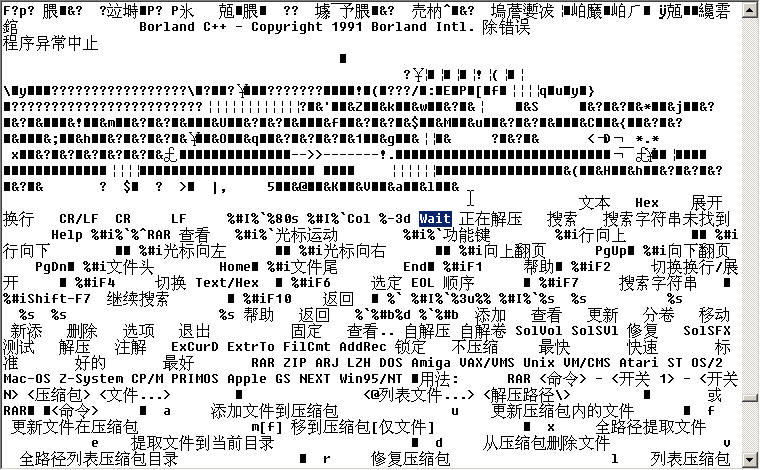
In Ultra Edit, click "Search" - "Replace" in Ultra Edit - and check the "Find ASCII" checkbox, replace wait in the above figure with wait and save.
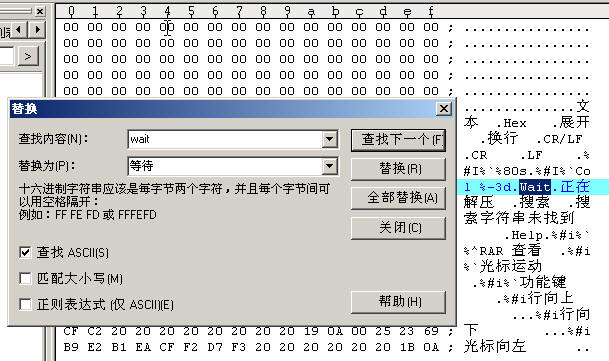
Repeat the above steps continuously until the remaining English strings are replaced with localized strings:
Precautions during replacement:
★. The length of the replaced Chinese string must be less than or equal to the length of the original English string to be replaced, one Chinese character is equivalent to two English character lengths, if the length of the Chinese string is less than the length of the original English string, spaces must be used to make up to reach the same length as the original English string.
For example, there is a string We chinese Super Hacker! in the English software, when replacing it with 我们中国高级黑客, you don't need to count the length of the original English string and the current Chinese string length, so as to calculate how many spaces to make up later.
According to the above principle, you can open another notepad, enter these two lines of content, you only need to ensure that when selected, the tails of the two lines are aligned (this method can be used to replace super-long strings).
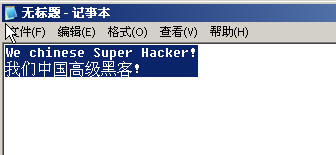
Then paste it into Ultra edit for replacement.
After the above work is done, the whole localization is almost coming to an end.
Step 4: Open the UPX shell compressed and packed localized software, and check after compression to see if it can be used normally:
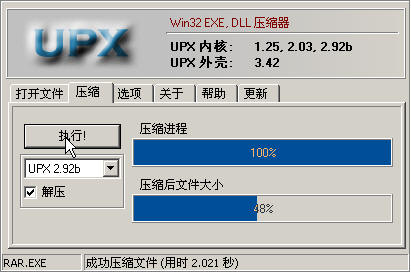
Look, the volume is reduced by more than half, after testing, it's found that it can be used normally, and at this point, the whole software localization is completed!
Have novices all learned? You can first find some simple software to practice, such as localizing Free DOS's command.com to make a Chinese FreeDOS and so on, NU2002's unformat and so on... and then get a Simplified Chinese PQ 8.05 Seriver version to use.
Don't forget to post a post to share with everyone after localization is completed, I'm also collecting a large number of Chinese software...
Finally, attach an attachment:
rar 2.50 compressor localized registered version download: http://upload.cn-dos.net/img/901.rar
Also attach a sorted zk.xls, which has been sorted, containing more than 6600 professional computer English vocabulary, replace the same name database under C:\Program Files\Software Localization, so that novices can also try to accurately interpret for reference and modification during machine localization.
Download link of zk.xls: http://upload.cn-dos.net/img/903.rar
Note: If this post inadvertently violates your rights, please write to xiaoyun32767@163.com, I will delete it within 24 hours.
[ Last edited by xiaoyunwang on 2010-1-10 at 23:49 ]
Novice work, old birds don't need to read it, so as not to say I'm wasting your time.
All operations are completed in Windows, tested in VPC virtual computer, ensure you learn, no nonsense, directly cut to the core!
1. Tools Needed (Are You Ready?)
(1). Download Li Guoyin's English software prompt information permanent localization tool ercwin5.zip version.
Download page: http://www.esnips.com/web/erctool
(2). Prepare UltraEdit, no need to say more, I believe everyone knows it.
Download page: http://www.orsoon.com/Soft/4925.html
(3). One VPC virtual computer software (mine is VPC 5.2).
Download page: http://www.orsoon.com/Soft/2392.html
(4). One CUP386 unpacker (the most powerful decryption and unpacking software).
Download page: ftp://ftp.sac.sk/pub/sac/pack/ucfcup34.zip
(5). One UPX packer (most foreign software is packed with it oh).
Download page: http://www.orsoon.com/Soft/4190.html
(6). One WinImage floppy disk image making tool.
Download page: http://www.orsoon.com/Soft/1815.html
Select the menu "Options-Settings", then click "Genenal", and select "Simplified Chinese" in "Language", which is WinImage with Simplified Chinese interface.
Registration name: winimage
Registration code: 13D505DF
(7). Okay, almost, plus Windows notepad, a standard boot disk.IMG image (available CN-DOS standard boot disk), prepare a Chinese character system (tw, CCDOS as you like) and put it in.IMG, first test in the virtual machine to see if it can boot or load the Chinese character system.
2. Preparation Work
(1). Install Li Guoyin's English software prompt information permanent localization tool Windows version, this is very simple,
But when a dialog box "Register file C:\windows\system32\expsrv.dll" error occurs,
Click the "Ignore (I)" button, after installation is complete, replace the expsrv.dll in "Software Localization.CAB" in the original compressed package with the same name file in C:\windows\system32\expsrv.dll, and the installation is successful here!
(2). Extract CUP386.com and so on to c:\do directory, write a simple batch do.bat
@echo off
set str=program name.extension
cup386 /1 %str% c%str%
After unpacking is completed, the unpacked program name is prefixed with a c character to distinguish.
3. Start Localization
Take an example, such as localizing RAR2.50 registered version, let's try.
The original English registered version of the attachment is: http://upload.cn-dos.net/img/878.rar
(1) Step 1: Unpack and decrypt
Open rar.exe with notepad and take a preliminary look, find that it's all garbled, not a few English strings, estimated to be packed (also called encrypted). Small tip: Like MS-DOS 7.10's IO.SYS, COMMAND.COM, etc., their English prompt characters are in plain text inside, so it's simpler to localize them, at least no need for the unpacking and decrypting step. Because most foreign programs are encrypted with UPX, so for novices, the simplest method is to first try unpacking with Upxshell, and the result is found:
This indicates that RAR.EXE is not encrypted with UPX. Small tip: If you take a preliminary look with notepad and find characters like UP..X and so on, most are UPX shells added, then use cup386 to unpack.
Jump to c:\do directory, and put the rar.exe to be unpacked in the same directory as CUP386 in C:\do.
Properly change set str=program name.extension in do.bat to set str=rar.exe as shown in the figure:
Then double-click do.bat to perform unpacking (because it needs to scan the entry point, it may take some time, please wait...). After a while, the unpacking is successful, and a crar.exe is generated, copy it to other non-C: disk directories and rename it to rar.exe. I put it in D:\ here, note: must not put it in C: disk.
(2) Step 2: Software Localization
Open Li Guoyin's English software prompt information permanent localization tool, and click the "Extract Prompt Information" button, select the unpacked rar.exe, here is D:\rar.exe, there are three radio "Function Options":
For novices, in order to make localization as successful as possible, it's best to follow the following recommended principles!
i) First use automatic extraction, when this step of localization is completed and debugging is okay, then
ii) Use semi-automatic extraction to localize some remaining unextracted English strings
iii) After the above two steps are completed, use UltraEdit to do the final work, that is, manually replace some remaining English strings to make localization thorough.
Let's tell them one by one:
Step 1: First select "Automatic Extraction" then confirm, after automatic extraction is completed, click "No (N)" in the "Software Localization" dialog box, then click the "Localize Prompt Information" button, start translating strings line by line, you can also click the "Translate" button to use the machine-translated information for reference and modification, if you find translation difficult, turn on Kingsoft Iceberg Dictionary too, as shown in the figure:
Next, tell the precautions during localization:
★. Never remove or translate %c %d %s %ud %uld %d.0%d and so on, because they will be used as replaceable parameters of the program.
★. The $, $$ and other characters in the localized line should be aligned with the corresponding lines above and below, because $ they may be the memory addresses accessed by the program through pointers, if the position changes, the program will crash or have CPU errors.
★. An experience common sense, the length of the localized line string must not exceed the length of the corresponding line, especially when you use the "Edit" button to open the word processor for batch translation, you need to pay attention.
Let's continue translating, you may need to test in the virtual computer every time you localize for a while, so as to find errors early and correct them... After saving, click the "Build Localized Software" button, click "No (N)" in the following dialog box to avoid errors
Finally click "Yes (Y)" to replace the original English software.
Use WinImage to drag part of the localized rar.exe and the registration file rar.cfg into an. img image with Chinese character system together to test...
Not bad, continue localizing, return and click "Localize Prompt Information" to modify and localize the remaining lines. Repeat the above operations continuously until the first step of localizing rar.exe is completed, we find that after the first step, most of the English has been localized, but there are still a few remaining unlocalized.
If you have any questions, send a text document at this time for comparison:
Download link: http://upload.cn-dos.net/img/895.rar
Step 2: Re-extract the English strings of rar.exe that has been localized in most parts, at this time select "Semi-automatic Extraction" in the "Function Options" to manually screen English strings. It's better to back up this semi-localized rar.exe first, small tip: Before performing this operation, first automatically extract a small-volume DOS software, then semi-automatically extract rar.exe to prevent that the content retained when you semi-automatically extract is still the content of the previous automatic extraction.
In this, it seems that there are not too many English strings, translate the words like Line up, Line down, Char right, Memory, and Settings and other words, then save and replace to carry out the third step of final work.
Step 3: Use Ultra Edit to manually replace the remaining English strings to make localization thorough.
At the same time, open the current rar.exe with notepad and Ultra Edit, and see that in notepad, the original English strings have become mostly "Chinese" strings, as shown in the figure:
In Ultra Edit, click "Search" - "Replace" in Ultra Edit - and check the "Find ASCII" checkbox, replace wait in the above figure with wait and save.
Repeat the above steps continuously until the remaining English strings are replaced with localized strings:
Precautions during replacement:
★. The length of the replaced Chinese string must be less than or equal to the length of the original English string to be replaced, one Chinese character is equivalent to two English character lengths, if the length of the Chinese string is less than the length of the original English string, spaces must be used to make up to reach the same length as the original English string.
For example, there is a string We chinese Super Hacker! in the English software, when replacing it with 我们中国高级黑客, you don't need to count the length of the original English string and the current Chinese string length, so as to calculate how many spaces to make up later.
According to the above principle, you can open another notepad, enter these two lines of content, you only need to ensure that when selected, the tails of the two lines are aligned (this method can be used to replace super-long strings).
Then paste it into Ultra edit for replacement.
After the above work is done, the whole localization is almost coming to an end.
Step 4: Open the UPX shell compressed and packed localized software, and check after compression to see if it can be used normally:
Look, the volume is reduced by more than half, after testing, it's found that it can be used normally, and at this point, the whole software localization is completed!
Have novices all learned? You can first find some simple software to practice, such as localizing Free DOS's command.com to make a Chinese FreeDOS and so on, NU2002's unformat and so on... and then get a Simplified Chinese PQ 8.05 Seriver version to use.
Don't forget to post a post to share with everyone after localization is completed, I'm also collecting a large number of Chinese software...
Finally, attach an attachment:
rar 2.50 compressor localized registered version download: http://upload.cn-dos.net/img/901.rar
Also attach a sorted zk.xls, which has been sorted, containing more than 6600 professional computer English vocabulary, replace the same name database under C:\Program Files\Software Localization, so that novices can also try to accurately interpret for reference and modification during machine localization.
Download link of zk.xls: http://upload.cn-dos.net/img/903.rar
Note: If this post inadvertently violates your rights, please write to xiaoyun32767@163.com, I will delete it within 24 hours.
[ Last edited by xiaoyunwang on 2010-1-10 at 23:49 ]
Recent Ratings for This Post
( 2 in total)
Click for details

生命源头 → www.shengmingyt.cn